Files
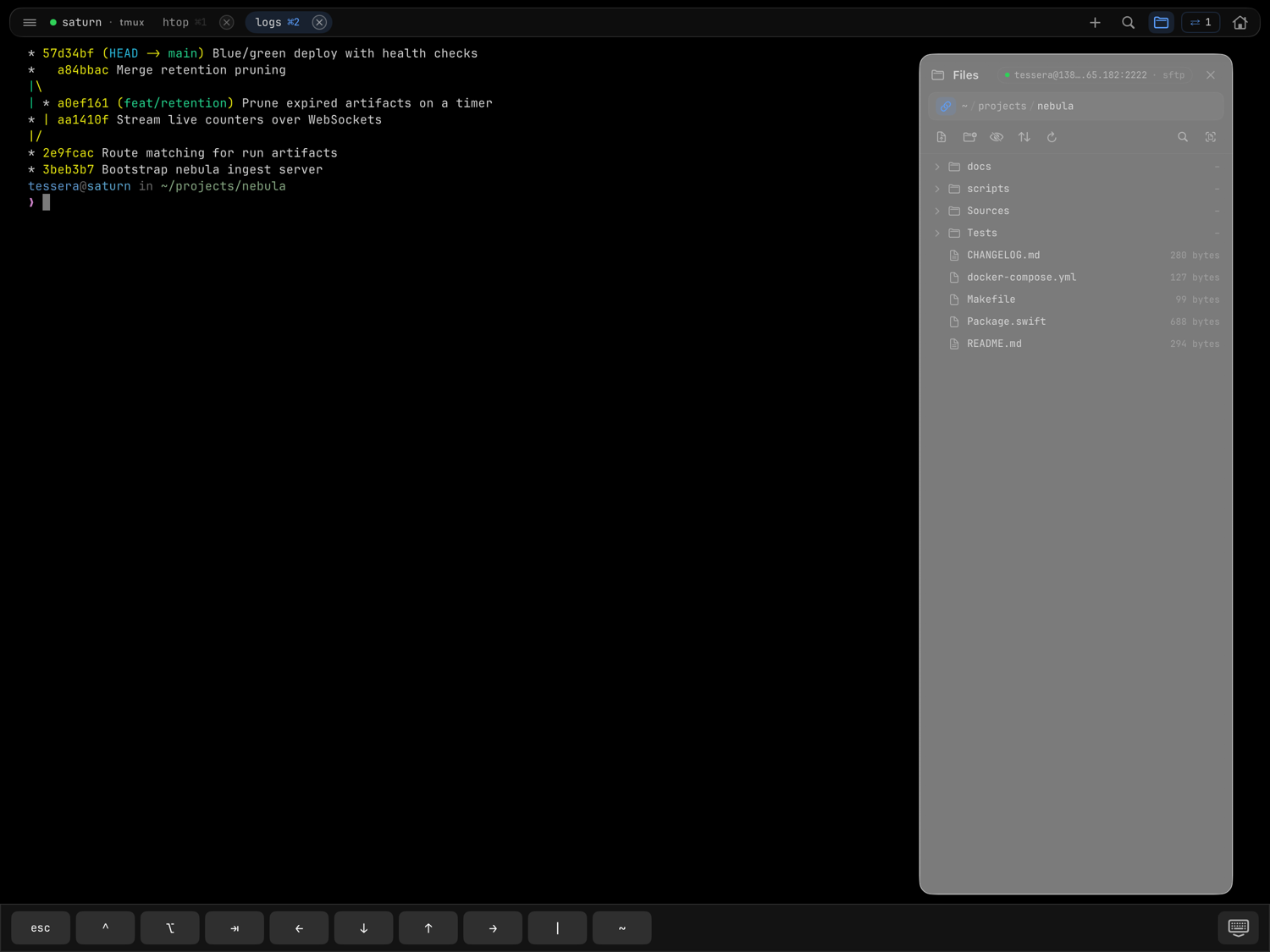
The files panel slides out beside the terminal and shows the remote directory your shell is sitting in. Open it with ⌘⇧E or the folder glyph in the session's top bar. On iPhone it rises as a half-height sheet instead, with the terminal staying live behind it.
File operations always run over a dedicated, lazily-opened SSH+SFTP bridge per host — never the terminal transport — so the panel works identically for ssh and mosh sessions. The bridge closes itself when idle.
Following your shell
The panel follows the shell's current directory. The precise signal is OSC 7 escape sequences; underneath sits a no-setup fallback that finds your newest shell on the host and reads its working directory.
If your shell doesn't emit OSC 7, the panel can offer Enable follow —
install shell integration, which installs ~/.config/tessera/osc7.sh on the
server and hooks it into .zshrc / .bashrc (marked with # TESSERA-OSC7).
It takes effect on the next shell login — run exec $SHELL or reconnect.
Over mosh, a stock mosh-server strips OSC 7 entirely, so following there
always relies on the fallback — Tessera doesn't offer the shell-integration
install where it wouldn't change anything.
You can also turn following off per panel and browse freely.
Browsing
The panel's breadcrumb bar shows the current path with a follow toggle. Actions:
- upload here, new folder,
- hidden-file toggle, sort, refresh,
- filter this directory,
- open by path with tab-completion suggestions,
- a recents list.
Each file's context menu offers Quick Look (downloads to preview — Markdown files render as formatted documents), Download, Share… (the iOS share sheet), and Send Path to Terminal. A Quick Look preview opens as a popup by default; the arrows button in its top bar switches it to full screen and back, and Tessera remembers which you prefer. Transfers show up in a progress strip, and errors are explicit — for example: "This host's key isn't trusted yet. Open a terminal session to it first to review the key, then retry." (see host key verification).
Uploading
Three ways in:
- Upload here in the panel.
- Drag and drop a file onto the terminal (iPad — iOS has no inter-app drag) — it's uploaded and its remote path is typed for you.
- Share into Tessera from other apps — images through the iOS share
sheet, other file types through "open in Tessera". The Upload to host
sheet picks the host and a
destination — session cwd or temp folder (
~/.cache/tessera) — with a Paste path into active session toggle. Hosts that aren't connected are marked "connect on upload…" — the Connect & upload button connects first, then uploads.
The paste-path flow is built for agent workflows: paste or share a screenshot and Claude Code / Codex pick the file up from the typed path.
Tessera also appears under "On My iPad" / "On My iPhone" in the Files app, so downloads are easy to reach from other apps.
Housekeeping
Under settings → files:
- temp file cleanup — a reaper deletes
paste-*files in the temp folder on connect: off, 1 day, 7 days (default), or 30 days. - default upload destination — session cwd or temp folder, remembered per host.