Host key verification
Tessera uses trust-on-first-use (TOFU): the first connection to a server pins its host key, and every later connection is checked against that pin.
First connection
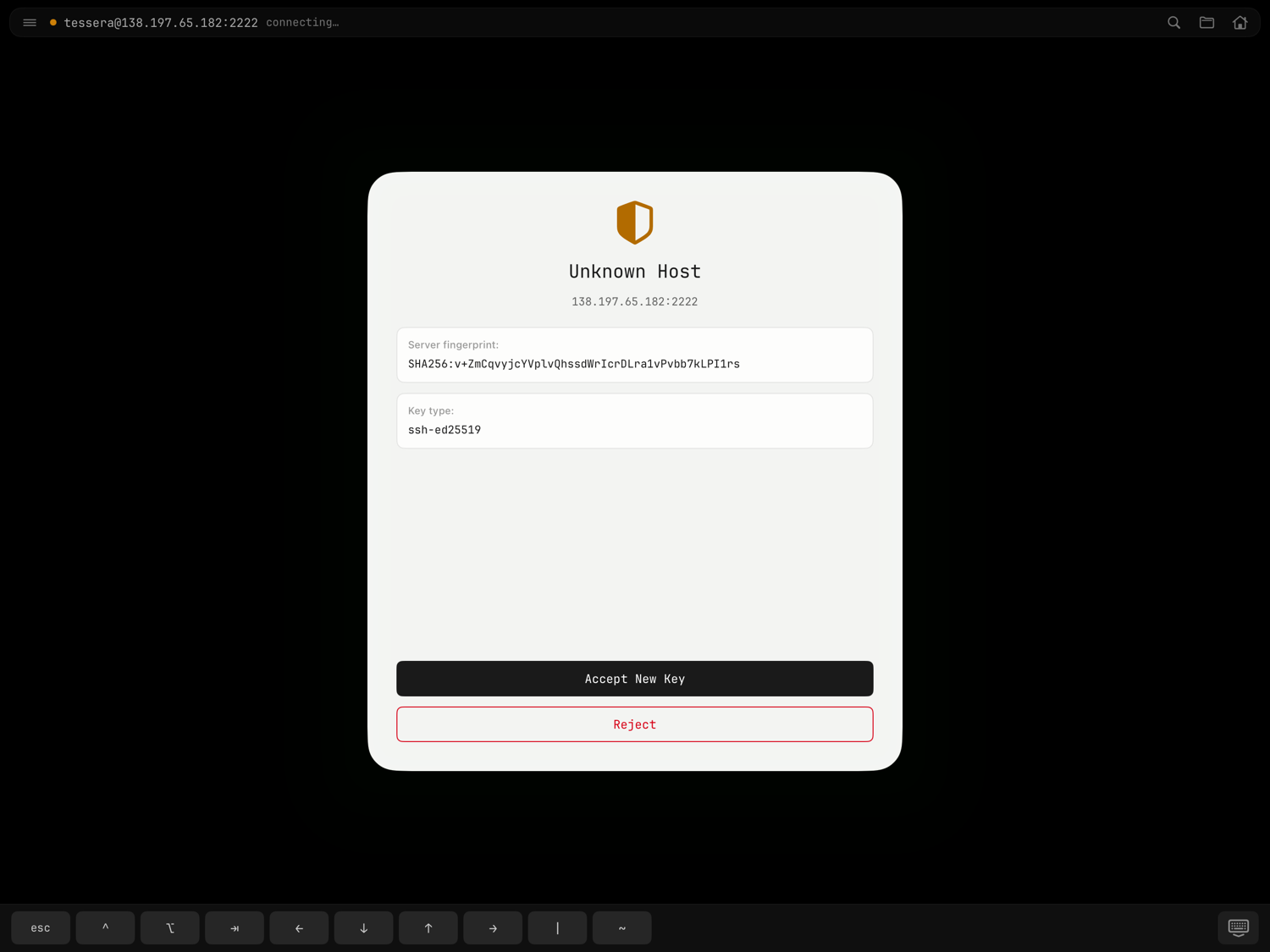
The first time you connect to a server, Tessera blocks with an Unknown Host sheet showing:
- the endpoint (address and port),
- the server fingerprint (SHA-256, OpenSSH-compatible),
- the key type.
Verify the fingerprint against a source you trust — your provider's dashboard, or on the server itself:
ssh-keygen -lf /etc/ssh/ssh_host_ed25519_key.pub
Then tap Trust & Connect to pin it, or Cancel to abort. Until a host's key is trusted, Tessera won't install keys on it, and the files panel will ask you to open a terminal session first.
Trusting once covers the whole connection: a mosh host's trust rides its bootstrap SSH, so the tmux side channel doesn't prompt again. When you arrive via handoff or import a host through nearby setup, the sheet also says whether the key matches what your other device trusts — and when it differs, the sheet leads with Don't Connect. Useful context, but the pin is still an explicit per-device decision; trust never syncs.
A changed host key
If a server's key ever differs from the pinned one, Tessera shows HOST KEY CHANGED with the classic "WARNING: REMOTE HOST IDENTIFICATION HAS CHANGED!" notice, the old and new fingerprints, and Trust / Cancel buttons.
Treat this as a possible man-in-the-middle attack unless you know why it changed — legitimate reasons include reinstalling the server, replacing it, or rotating its host keys deliberately.
The known hosts page
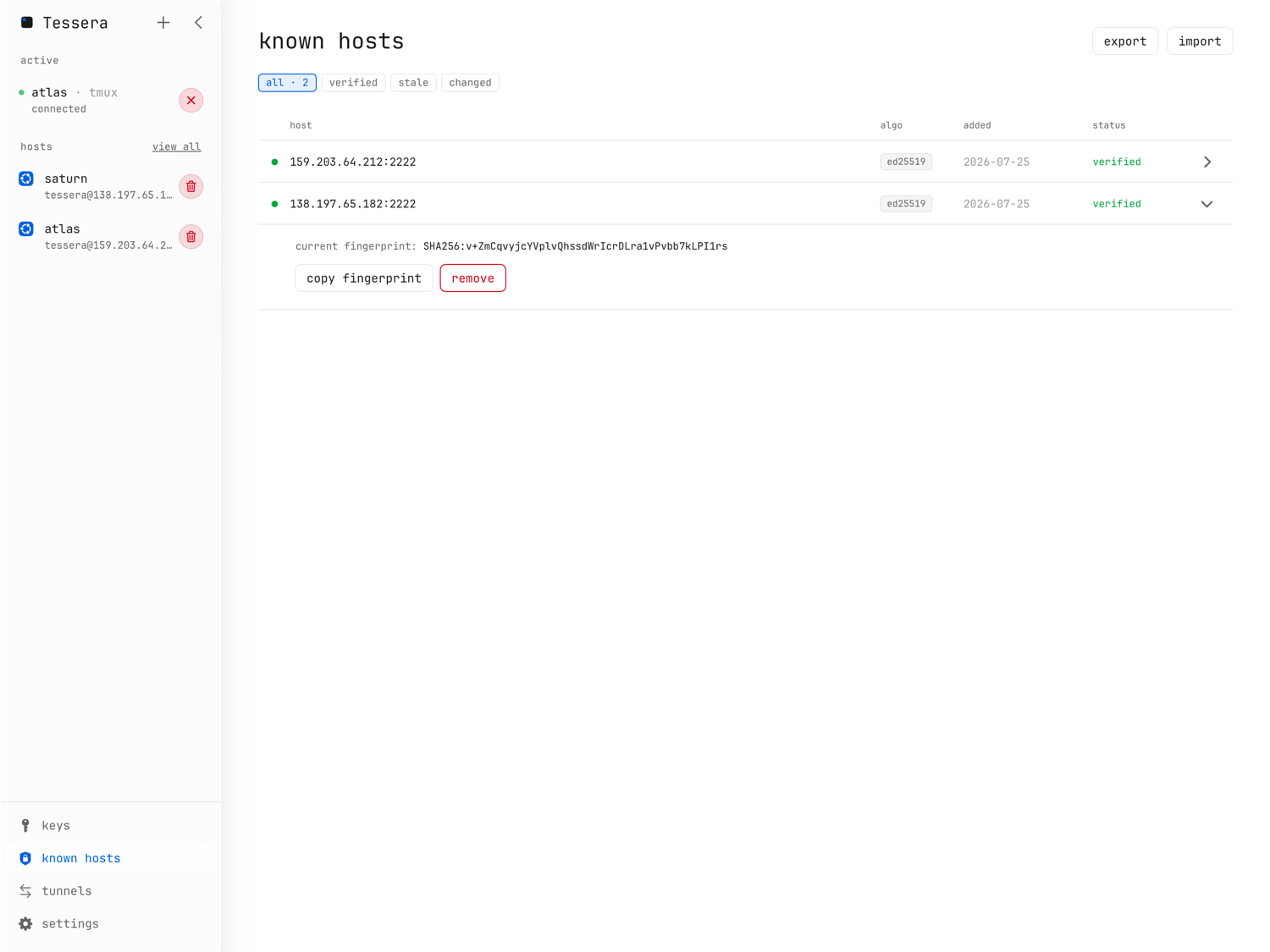
The known hosts page (sidebar on iPad; behind the keys tab's selector on iPhone) lists every pinned key: host, algorithm, date added, and status. Filter chips narrow the list:
- verified — pinned and matching,
- stale — not seen in 90 days,
- changed — a different key was seen; a red banner marks the mismatch.
Expand a row to see its fingerprints, copy fingerprint, accept new key (after a legitimate change), or remove the pin. Removing a pin means the next connection is treated as a first connection again.
Pins are stored in known_hosts.json in the app's Application Support
directory, keyed by address:port, with OpenSSH-compatible SHA-256
fingerprints.
Export & import
The page header's export button writes your pins as a standard OpenSSH
known_hosts file — public host keys and fingerprints only, nothing
secret — ready for any other SSH client. import reads a known_hosts
file and shows a review of every pin it found before anything is merged, so
you decide what comes in; a file with nothing usable says so ("No importable
host pins were found."). Both work on iPad and iPhone.