tessera on iPhone
Tessera runs on iPhone and iPad as one universal app — same App Store listing, same unlock, no separate purchase. The iPad remains the keyboard-first place for real work; the iPhone is built as a companion surface: glance at a build, scroll back through output, approve an agent prompt, fire off a quick command — with mosh and tmux keeping the session alive in between.
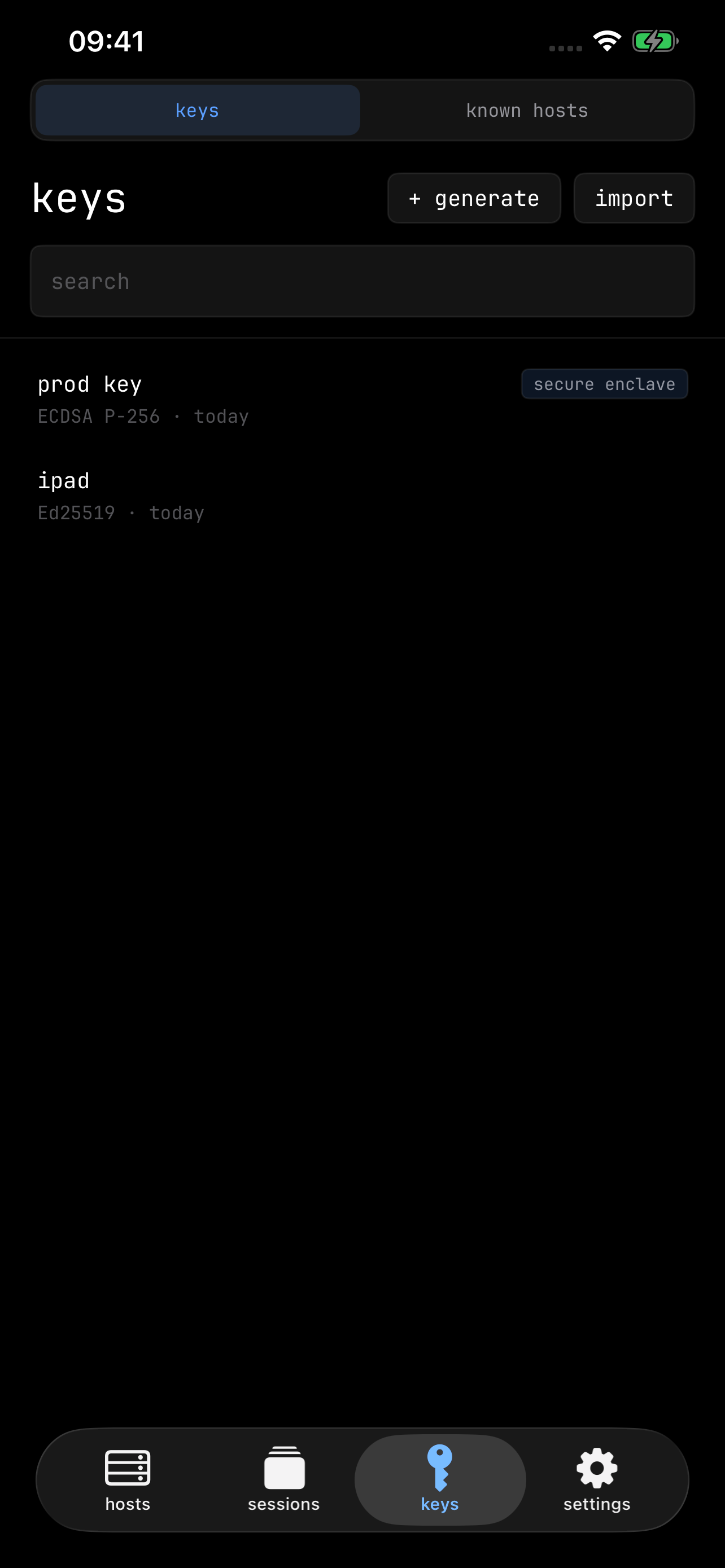
The tab bar
The iPhone replaces the iPad sidebar with four tabs: hosts, sessions, keys, and settings. Two of them carry a second view behind a selector: sessions also holds the agent center (when the experiment is enabled — the tab shows a badge when agents need attention), and keys also holds known hosts. The sessions tab is badged with the number of agents waiting for input or freshly finished (when the agent center is on).
The same compact shell appears on an iPad in Split View, Slide Over, or a narrow Stage Manager window — it follows the window size, not the device.
In a session
A session opens full-screen above the tabs. The compact top bar keeps the essentials:
- back (chevron) — return to the tabs; the session keeps running.
- host name — tap to open the switcher (below).
- + — new tmux window, when the session is tmux-backed.
- find, files, and forwarding status.
- ✕ — disconnect. Unlike backing out, this ends the session immediately.
The switcher
Tapping the host name opens one searchable surface for moving around: tmux windows and their panes, other live sessions, a shortcut back to hosts home, and — when agent center is on — agents. It's also where compact tmux actions live: split left / right, split top / bottom, and rename window.
Your tmux layout is safe
Attaching from the phone never reflows a layout you built elsewhere. The window's server-side geometry, splits, and zoom state stay exactly as your iPad or desktop left them; the phone shows one pane at a time, full-screen, chosen through the switcher. Only a session first created on the iPhone uses phone geometry — and if an iPad later attaches to it, the larger screen takes over the grid.
Typing without hardware keys
- The accessory bar above the keyboard carries
esc,⌃,⇥, arrows,⌥,⌃C, and⌃Jby default — tap a modifier once to apply it to the next key, or switch modifier behavior to sticky to lock it until tapped again. A dedicated control shows or hides the software keyboard, and the bar rides the keyboard's own animation. Chips from your custom shortcuts join the bar too, and the⌘palette chip fires app chords without a hardware keyboard. - The software keyboard slides the view instead of reflowing your terminal rows (settings → keyboard & input → resize terminal with keyboard brings the reflow back), and find in terminal stays visible while you type a query.
- The swipe pad is on by default on iPhone, drawn as a corner fan in the thumb arc — including live agent options when an agent is waiting. Double-tap it for on-device dictation.
- A Bluetooth keyboard gets the full shortcut set, same as iPad.
The host editor, in full
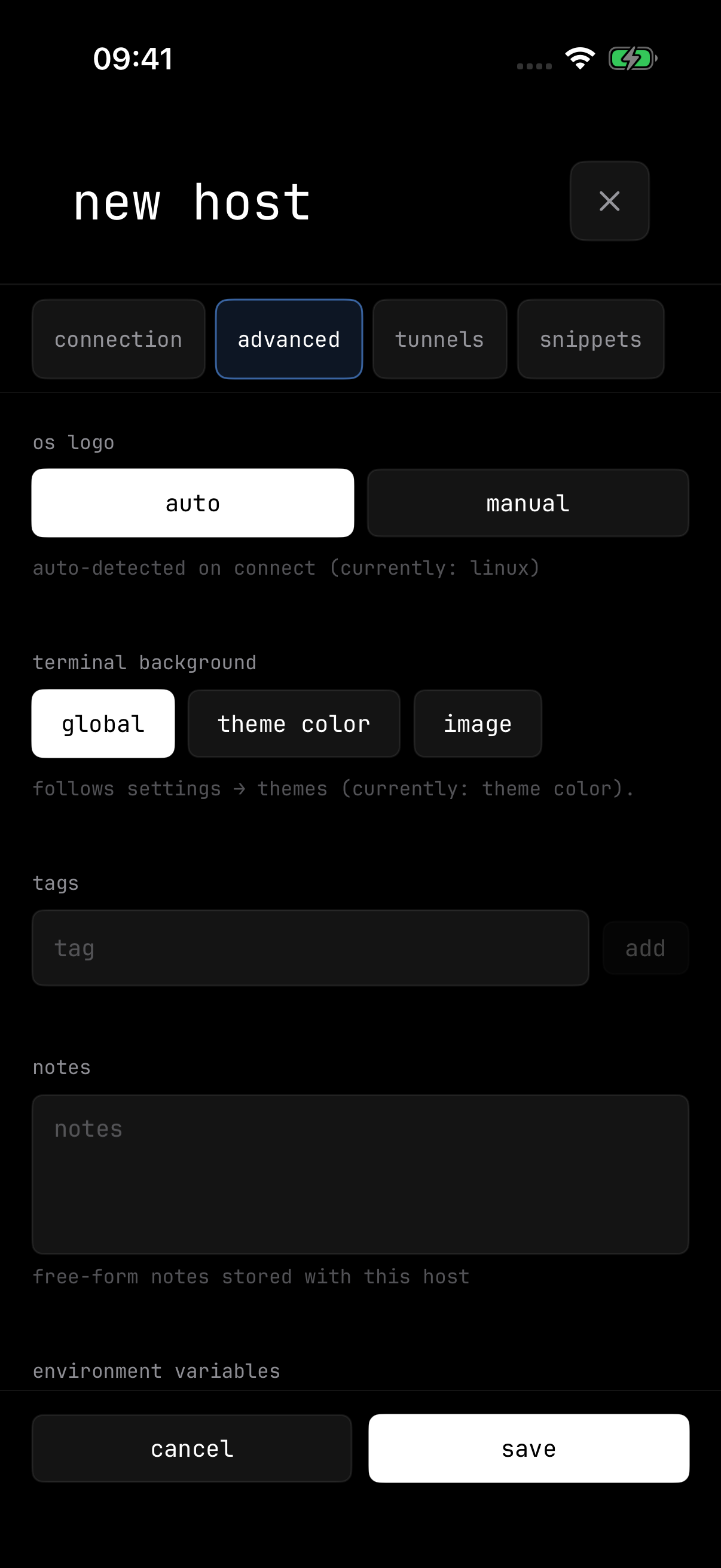
The phone's host editor carries everything the iPad's does — the same four sections as chips: connection, advanced, tunnels, snippets. Launch modes, jump hosts, tags, notes, environment variables, startup snippets, forwarding rules — all editable in your pocket, staged until you save. For a host that authenticates with a stored password, the editor also changes it; saving replaces the password kept in this device's keychain.
What stays on iPad
Only a little remains iPad-only:
- The theme preview gallery — theme selection itself lives in appearance on both.
- The large swipe-pad puck size, and the multi-session restore chooser — the phone has a single restore on launch toggle instead.
- ⌘R (refresh terminal) — the phone repaints on its own.