nearby setup
Nearby setup copies your Tessera configuration from one device to another, directly over the local network. There is no account, no cloud, and no relay — the two devices talk to each other, compare a code, and encrypt the transfer end to end. Passwords and private keys never move; the sending device decides explicitly what does.
Before you start
- Both devices need Tessera installed, on compatible versions — a mismatch stops cleanly and says which device to update.
- Both must be on the same network, with the iOS Local Network permission granted, and both must stay in the foreground on the setup screen — that's the only time either device is visible.
- The sending device approves the transfer with Face ID or the passcode.
The flow
- On the new device, the first-open screen — bring your setup with you — offers to inherit from a nearby device. Tap find nearby devices. (Already past first open? The same flow lives in settings → sync & continuity → receive setup from nearby device.)
- On your existing device, open settings → sync & continuity → send setup to nearby device and keep the screen open.
- The new device lists your existing device; tap it to open an encrypted channel.
- Both devices show a six-digit code. Confirm only if they match — a mismatch ends the attempt and fresh keys are used next time.
- Your existing device chooses what to copy (below), then approves the whole batch with one Face ID prompt.
- The transfer runs, the origin installs the new device's public key on the hosts you selected, and both sides show a receipt.
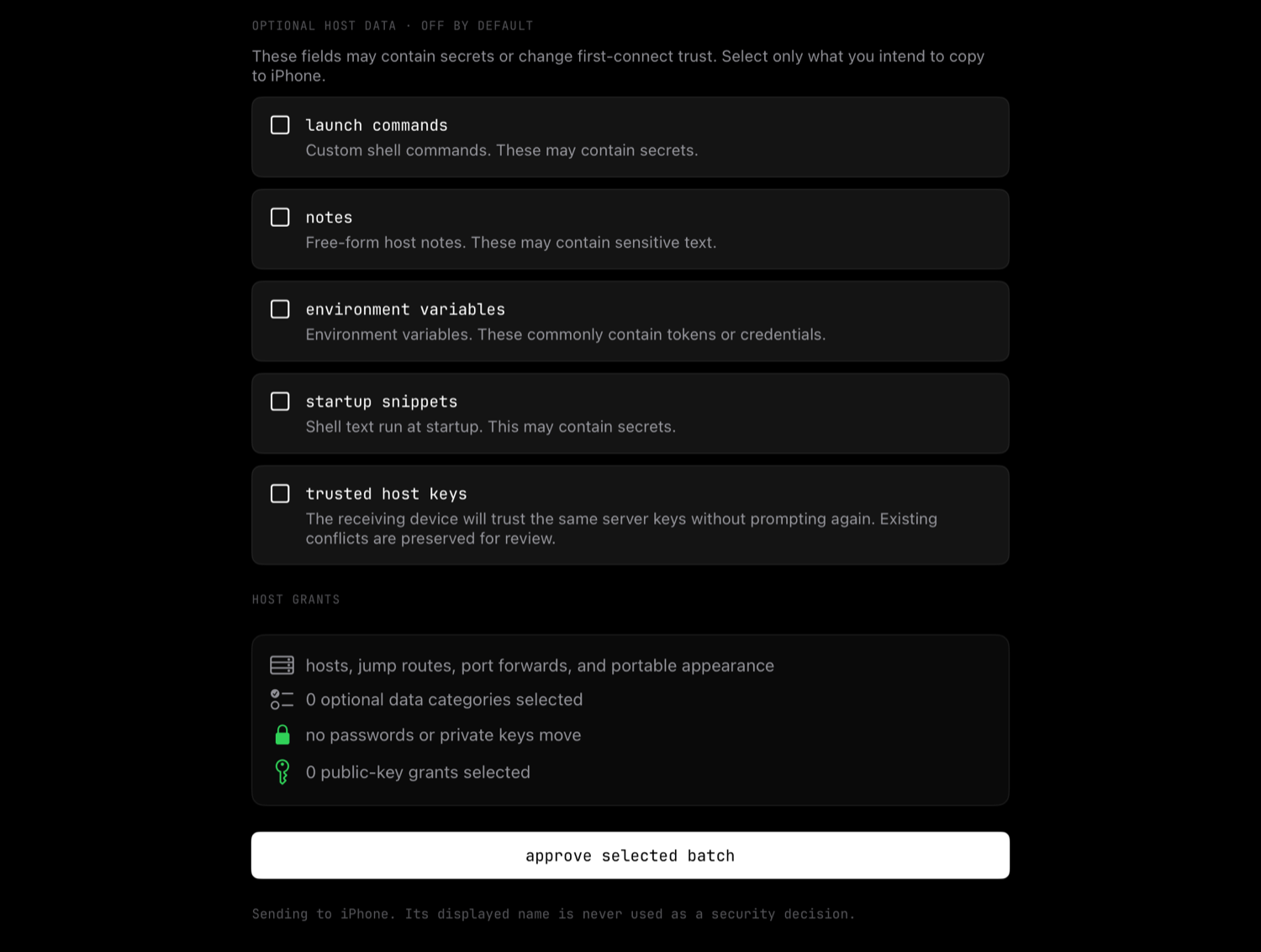
Choosing what to copy
The grant screen on the sending device is explicit about every field:
| always (when you approve) | opt-in, off by default | never on the wire |
|---|---|---|
| hosts — name, address, port, user, transport, launch mode, tags; jump routes; forwarding rules; portable appearance and terminal settings | launch commands · notes · environment variables · startup snippets · trusted host keys | passwords · private keys · key material of any kind · security settings · session state |
The opt-in fields are separate because they can carry secrets (launch commands and environment variables often do) or change trust decisions (imported host keys are trusted without a fresh prompt). They reset to off on every new attempt.
For each host the origin can also grant access: it installs the new device's own public key using its existing key-based access. Password-only hosts are excluded — the password stays where it is, and the new device asks for it on first connect.
After the transfer
The new device shows what arrived — hosts, jump routes, trusted keys — and a per-host access receipt: authorized where a key grant succeeded, and a configure later shortcut into the host editor where one didn't. Imported hosts carry no credentials, so anything not key-authorized simply prompts on first connect.
A few behaviors worth knowing:
- Nothing is ever overwritten. A host that already exists locally is skipped, and a conflicting trusted host key is kept aside and flagged for review in known hosts rather than replaced.
- Appearance and terminal settings from the origin are applied to the new device as-is.
- Backgrounding either app cancels the transfer; nothing partial is kept as granted until its key installation actually succeeded.
- On the free tier, an import that would exceed the saved-host limit asks you to choose what to keep — or unlock unlimited hosts.
This is not a sync
Nearby setup is a one-time copy, not a background sync — after it completes, the two devices are independent again. For moving between live sessions on devices you already set up, see continuity.